








How to Export Live2D Motions as motion3.json Files
Updated: 10/19/2026
This explains how to export motion created with a Live2D model in motion3.json format.
Placing a Live2D Model
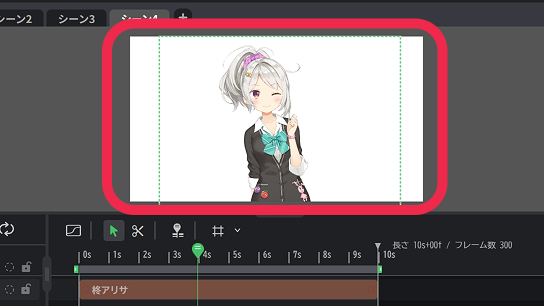
Place the Live2D model, either from the asset list on the left or one you have prepared, onto the canvas, and adjust its position and size.
Adding Motion
You can create expressions and movement from the “Live2D Tracking” or “Live2D Layer” palette in the sidebar on the left.
It is also possible to add movement by setting each Live2D parameter using keyframes on the timeline.
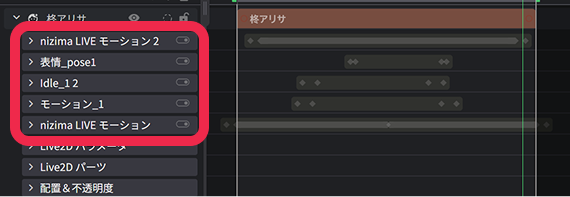
※Please see here for information on Live2D Tracking integration using nizima LIVE or VTube Studio.
※Please see here for information on how to add movement using keyframes.
Exporting motion3.json
You can export motion created using the steps below in motion3.json format.
How to Export a Motion
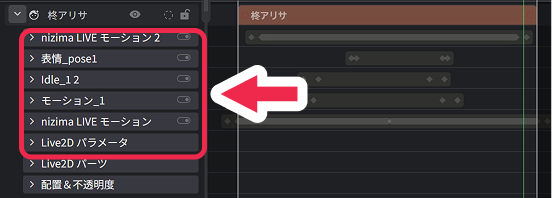
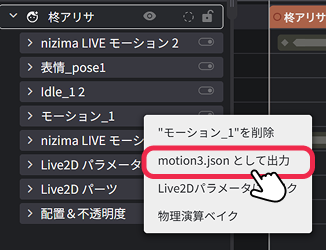
Right-click the motion you want to export.
Click “Export as motion3.json” from the displayed menu.
By using “Bake to Live2D Parameters,” you can combine multiple motions and export them together as a single motion3.json file.
Also, if you want to reflect physics calculations, such as swaying hair or clothing in sync with facial movement, apply “Physics Bake.”
Please see here for information on “Bake to Live2D Parameters” and “Physics Bake.”
※Note※
※Loading (importing) a motion3.json file on its own is not supported. The motion3.json file must be included in a folder or Zip file and uploaded together when uploading the Live2D model.