







Video and Audio Settings
Updated: 06/11/2026
Based on the audio layer, you can display the BPM grid, perform tempo analysis, and adjust the pitch and playback speed.
Pitch Adjustment
You can adjust the pitch of imported audio, music, and other sound files.
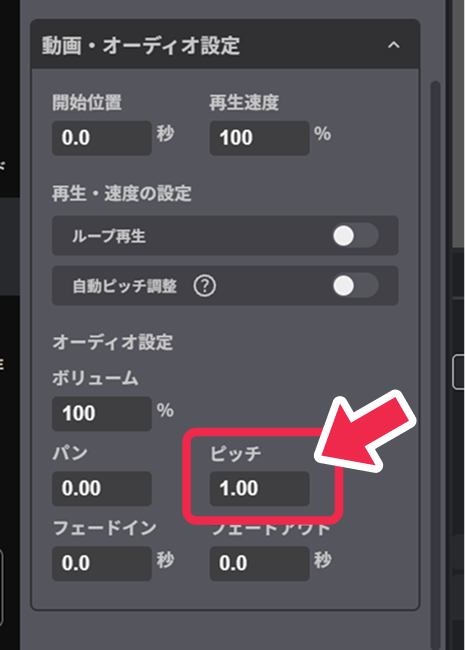
By changing the value, you can raise or lower the audio pitch and change the overall atmosphere.
【How to Set】
- With a layer selected, you can configure it from the “Pitch” item in the “Video/Audio Settings” displayed in the palette on the right side.
You can also change the pitch freely by adding keyframes.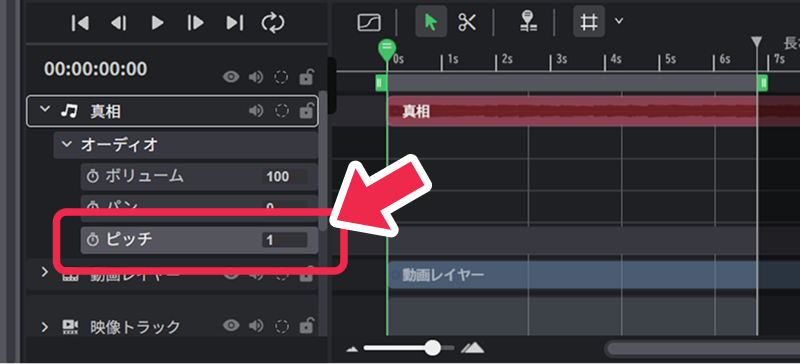
- Select the target layer in the layer list on the timeline and configure it from the “Pitch” item in the properties.
Auto Pitch Adjustment
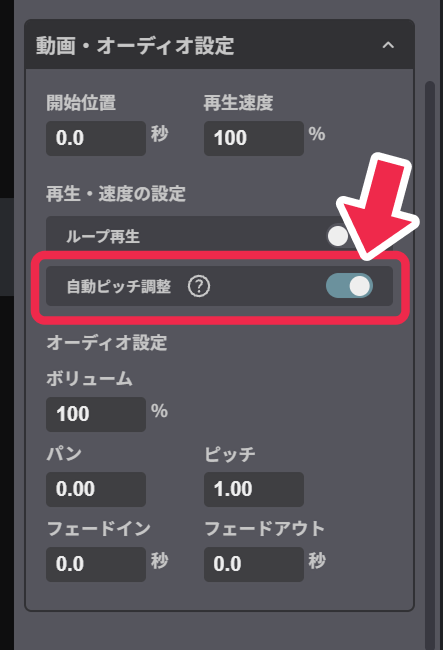
When you turn on “Auto Pitch Adjustment”, changing the playback speed will not affect the pitch, maintaining natural-sounding audio.
When you turn off “Auto Pitch Adjustment”, the pitch will change according to the playback speed adjustment, allowing you to create audio with fast-forward or slow-motion effects.
This feature is convenient when you want to speed up background music or adjust recorded audio to match the duration of your video.
【How to Set】
- With a layer selected, turn on Auto Pitch Adjustment in the “Video/Audio Settings” displayed in the palette on the right side.