








Decoration
Updated: 10/19/2026
Decoration is a feature that allows you to apply various effects, such as gradients, bevels, and glowing, to text or shapes you have created.
Below are examples of completed work with decorations applied.

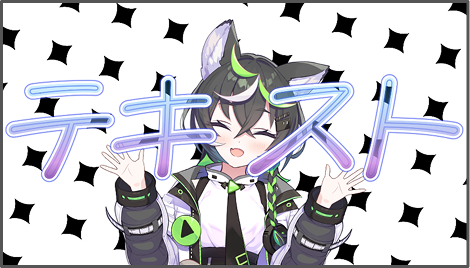
Neon-style text with the
“Glowing Outline” decoration applied
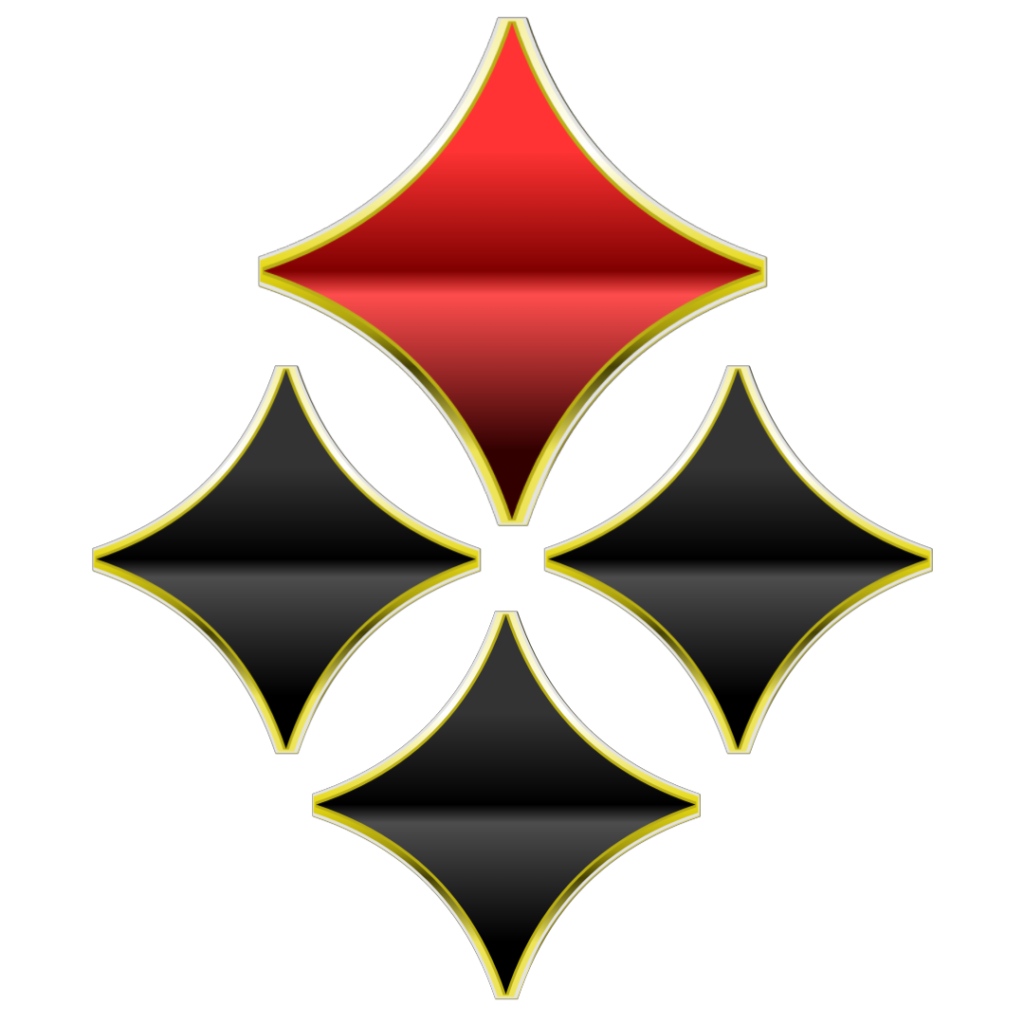
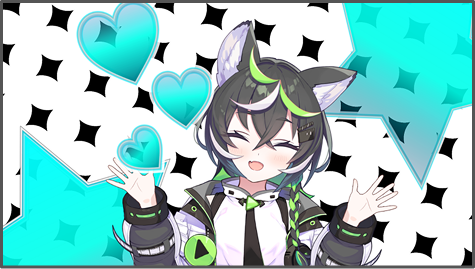
A shape with the
“Metallic” decoration applied
Table Of Contents
How to Apply a Decoration
Adding Text or a Shape
Text
Please see here for information on placing a text layer.
Shape
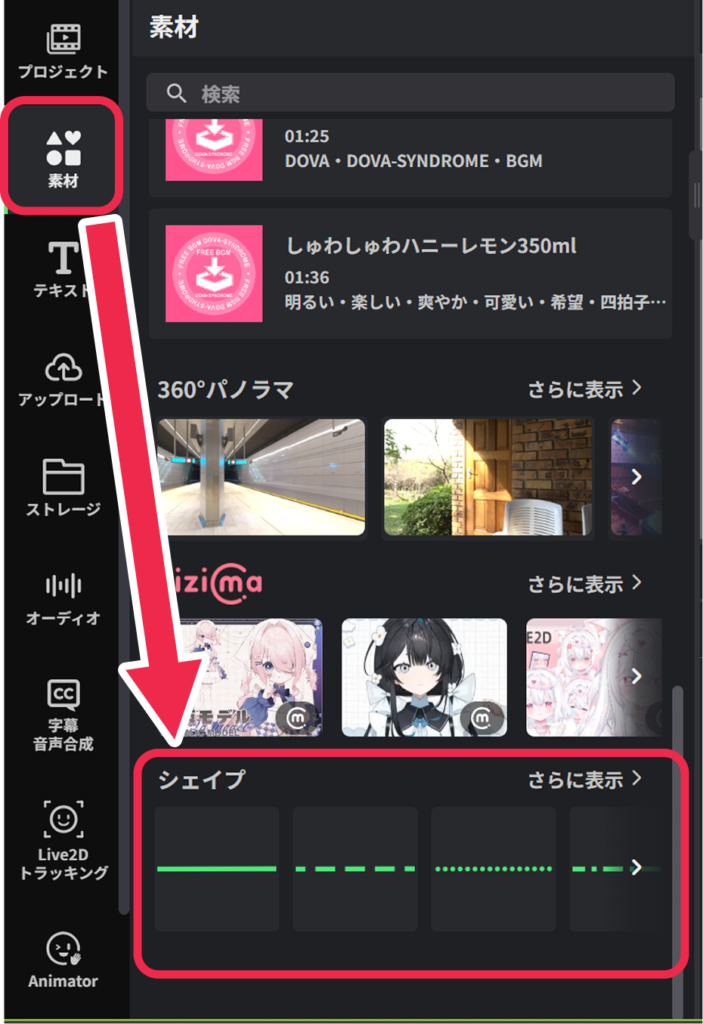
Click “Assets” from the sidebar on the left.
From the “Shapes” in the displayed list, select any shape and place it on the canvas. After placing it, adjust the size.
Shapes not shown in the list can be checked via “Show More.”
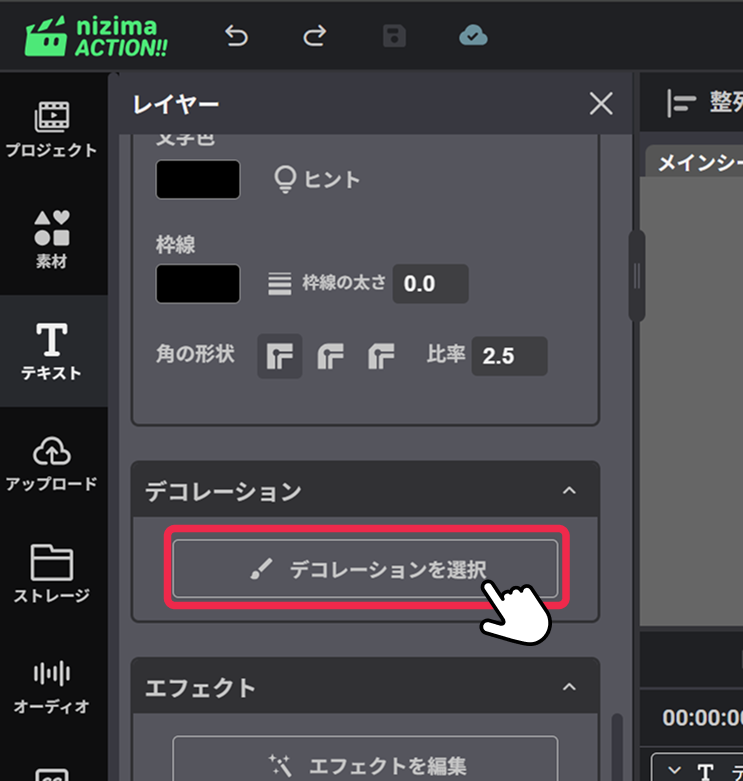
Clicking Decoration in the Palette
Make sure a text layer or shape is selected.
Click “Select Decoration” from the Decoration item within the palette.
Applying the Decoration
From the displayed list, select the decoration you want to apply.
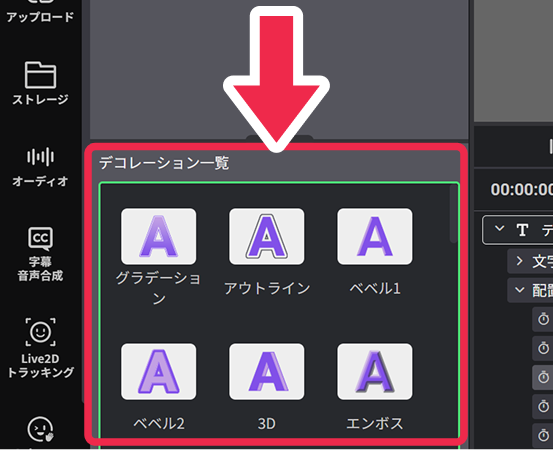
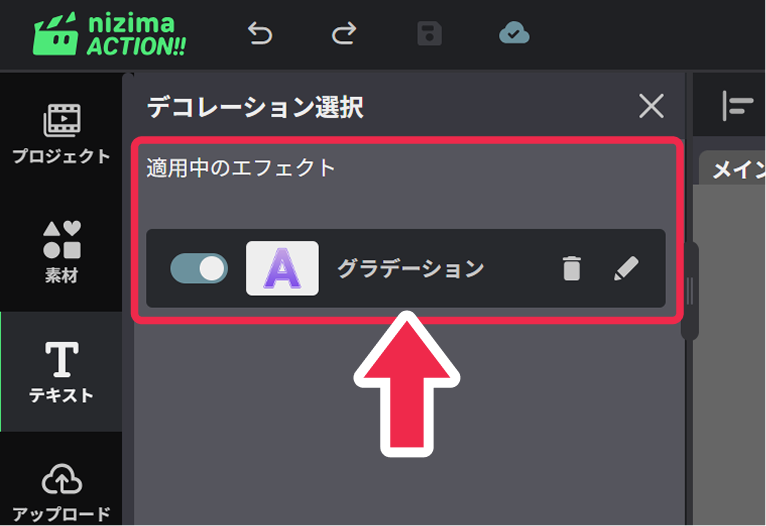
The decoration currently selected or applied is displayed at the top of the list.
※Only one decoration can be applied to a single text layer or shape.
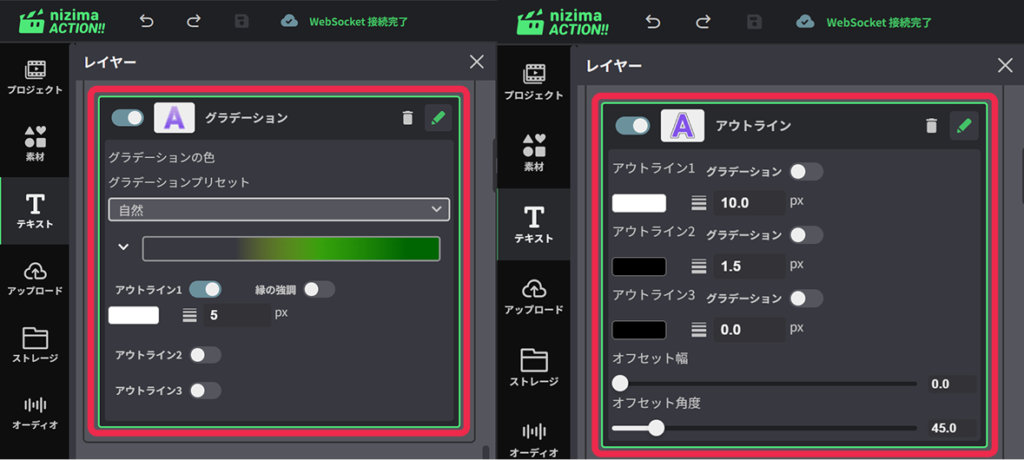
Decoration Detailed Settings
The items that can be set differ for each decoration. Please adjust each parameter according to your purpose.
Decoration Using Transparency
You can apply a transparent effect while keeping the text or shape easy to see.
How to Set It Up
【Step 1】
After creating a text layer or shape, apply any decoration of your choice from the decoration list.
*This page uses the “Gradient” decoration as an example.
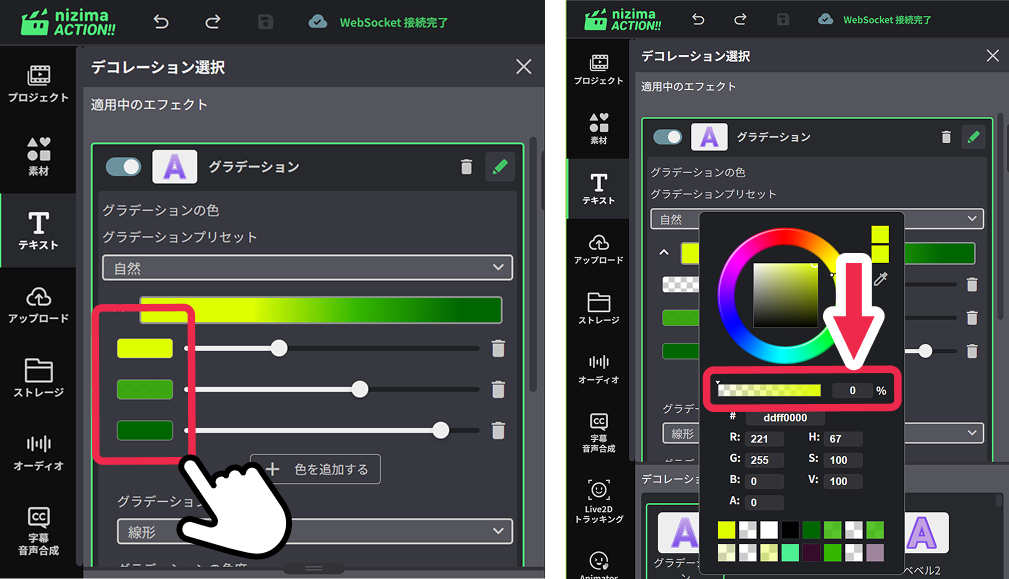
【Step 2】
Set the gradient colors in the detailed settings. Next, select the color of the part you want to make transparent, and set its opacity to 0.
※Please check that the part set to transparent is displayed with a checkered pattern.
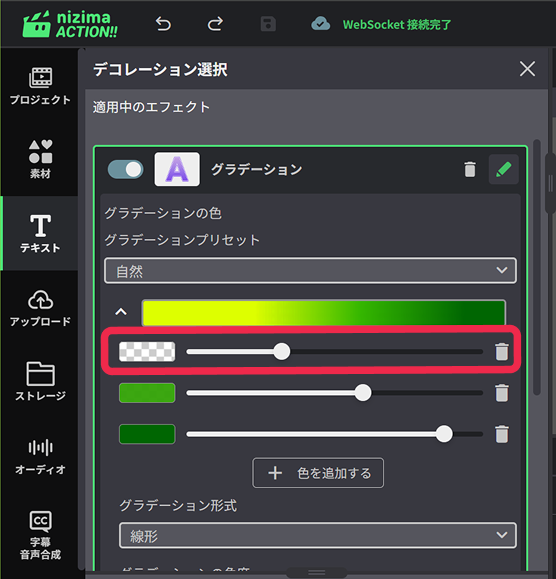
【Step 3】
Turn off the outline, adjust the overall color tone, and it’s complete.
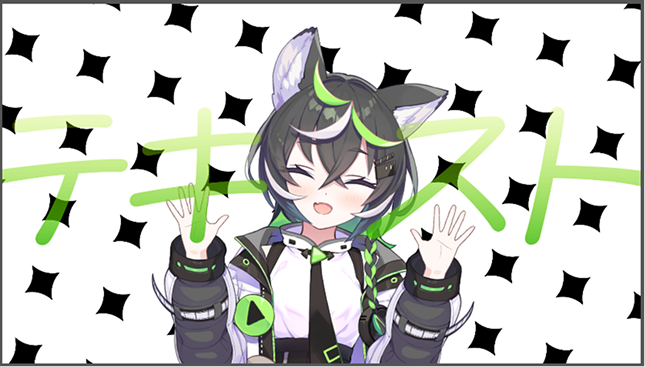
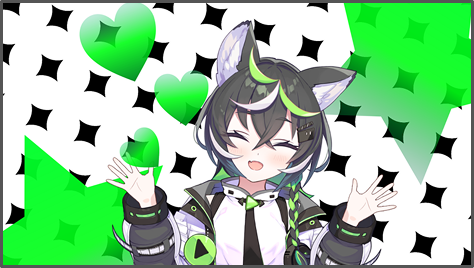
If You Want to Keep the Outline
【Step 1】
Turn on the “Outline” setting. Optionally, also check “Edge Emphasis.”
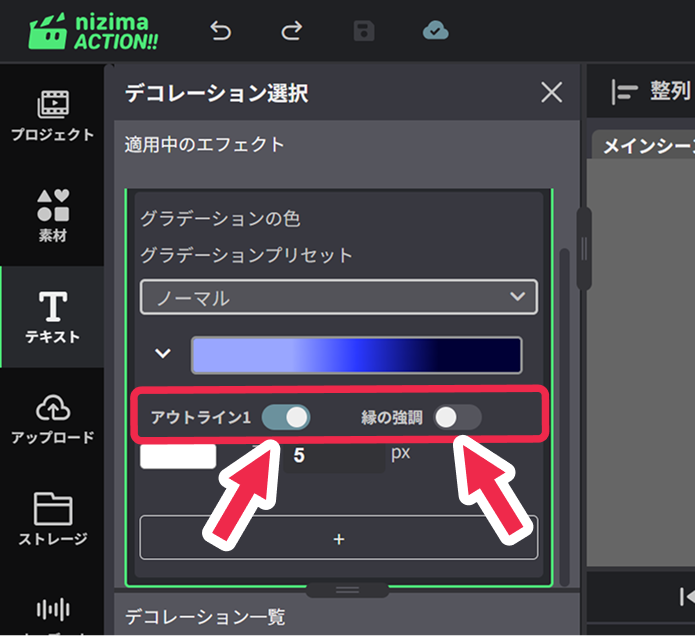
【Step 2】
Adjust the width of the outline. If using multiple outlines, adjust the width of each outline.
※It is recommended to adjust the outline width to a degree where the transparent effect remains visible. If it is made too wide, the transparent effect may become less noticeable.
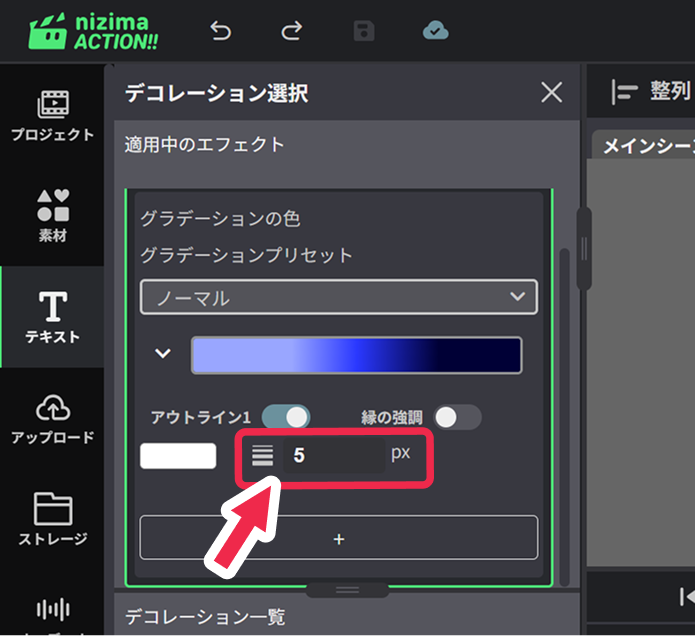
【Step 3】
Finally, adjust the color and opacity of the outline, and it’s complete.
List of Decoration Types (Examples)
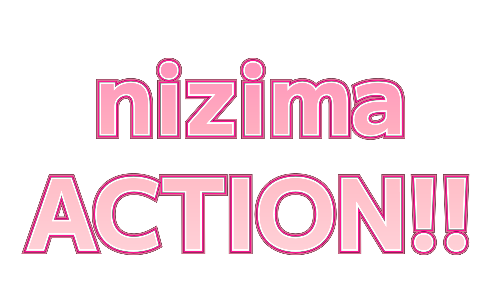
Gradient
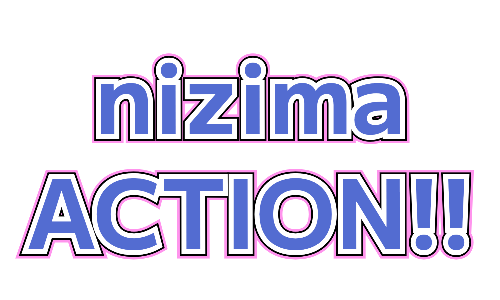
Outline

Bevel 1
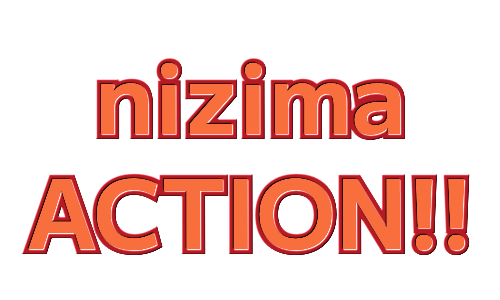
Bevel 2
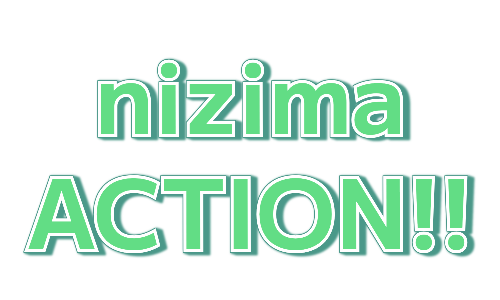
3D
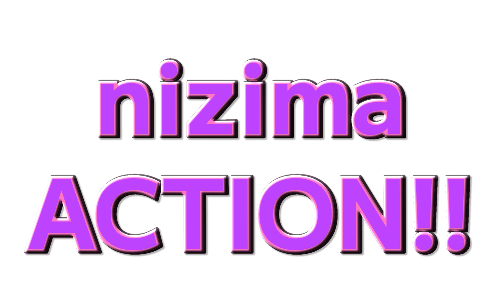
Emboss
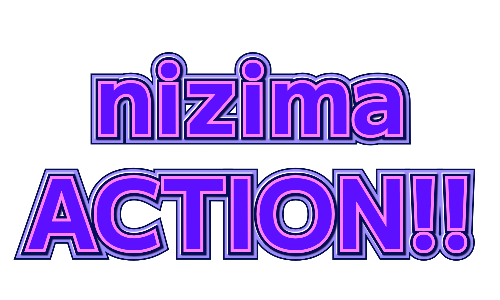
Bevel 1 Outline
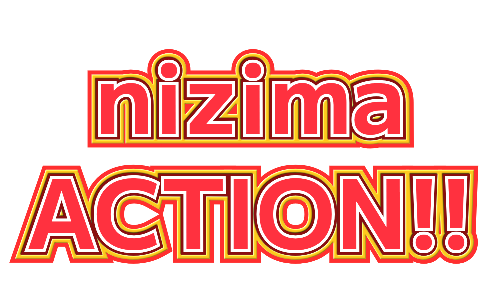
Bevel 2 Outline
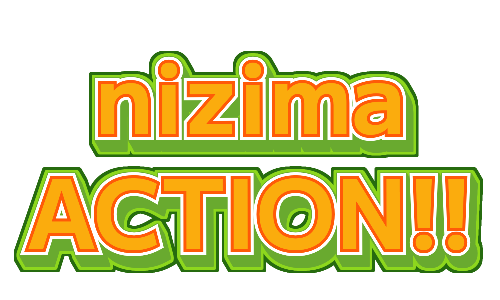
3D Outline

Emboss Outline
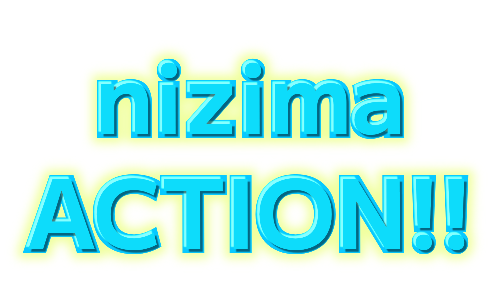
Glowing Bevel 1
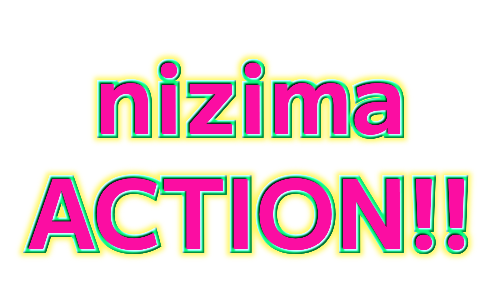
Glowing Bevel 2

Glowing 3D
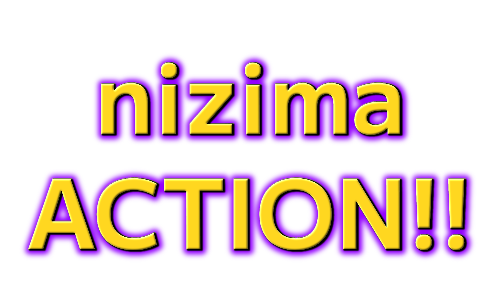
Glowing Emboss
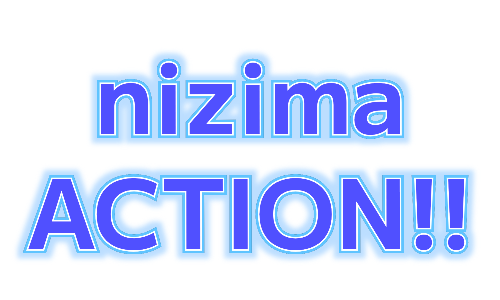
Glowing Outline
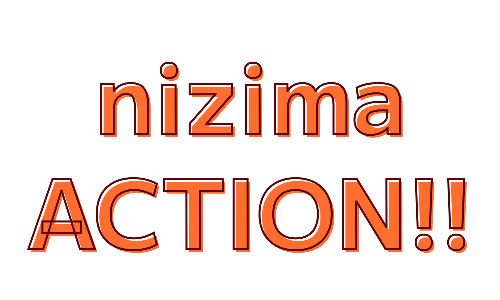
Outline Shadow

Metallic
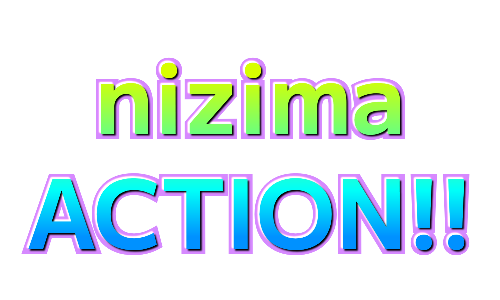
Gradient Bevel 1
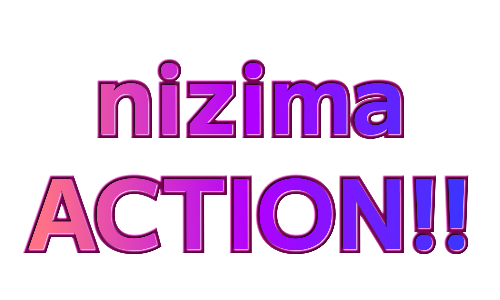
Gradient Bevel 2

Gradient 3D

Gradient Emboss
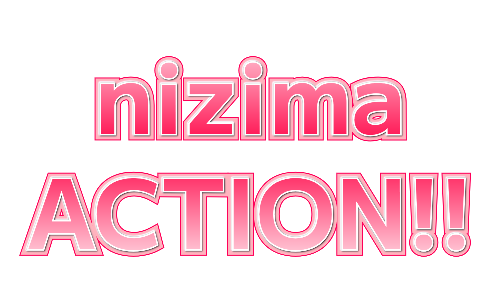
Gradient Bevel 1 Outline

Gradient Bevel 2 Outline

Gradient 3D Outline
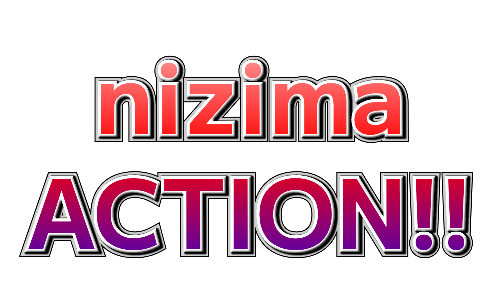
Gradient Emboss Outline
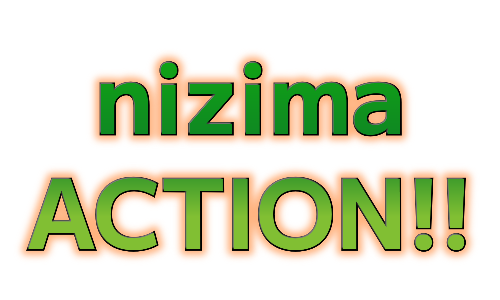
Gradient Glowing Bevel 1

Gradient Glowing Bevel 2

Gradient Glowing 3D
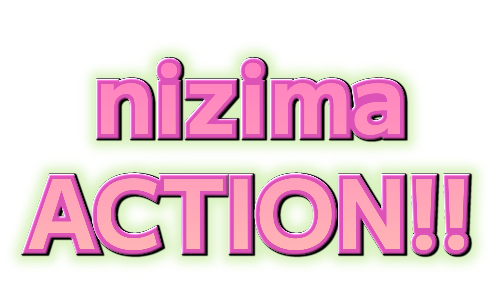
Gradient Glowing Emboss

Gradient Glowing Outline